 TempMail


An inbox for the
one-time stuff.
Get a disposable address, autofill the form, and copy the verification code from your browser toolbar.
Try a sample inbox.
Follow a signup from an address to a verification code.
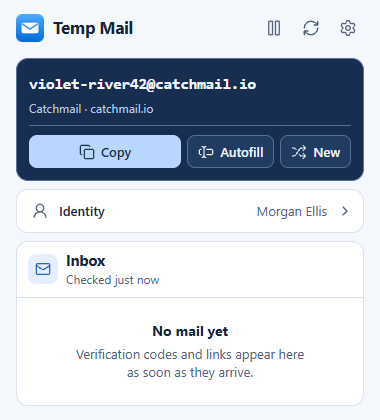
From address to code.
Stay on the page you’re signing up for.

Get an address
Your address stays the same until you choose New. Switch back to a saved address whenever you need it.

Fill the form
Use Autofill in the popup or the button beside the email field. Shift-click the button to fill the whole form.

Copy the code
Read incoming mail from the toolbar. When TempMail detects a verification code, copy it with one click.
Pick where mail lands.
Start with Catchmail or temp.tf. Connect your own Gmail if you want to use aliases on an existing inbox.
- Catchmail
- Disposable inboxes. You can also use a domain you’ve set up with Catchmail.
- temp.tf
- Disposable addresses with Gmail, Outlook, and Hotmail options.
- MyGmail
- Gmail plus aliases and dot variants through your own MailAPI account.
An inbox that fits the job.
Keep an address handy
Switch back to an address you’ve already used from the address history.
Pause automatic checks
Pause polling and desktop notifications. Refresh manually whenever you want to check.
Open mail on your terms
Message HTML opens in a sandbox, and remote images stay blocked until you choose to load them.
Install in three steps.
Read the install guideDownload and unzip
Grab the ZIP from GitHub Releases and extract it.
Open Extensions
Go to
chrome://extensionsorbrave://extensionsand enable Developer mode.Load the folder
Choose Load unpacked and select the folder containing
manifest.json.
Good to know.
Do I need an account?
Catchmail and temp.tf work without an account or API key. MyGmail requires a MailAPI account and key.
Can I pause inbox checks?
Yes. Pause stops automatic polling and notifications. You can refresh manually or resume automatic checks from the popup.
How does TempMail display email?
HTML mail opens in a sandboxed viewer, and remote images stay blocked until you choose to load them.